Observatories in Chile · Gaussian Splatting
Observatory Explorer
Discover our collection of reconstructions of ALMA, Paranal, SOAR, Gemini South, Cerro Tololo and Vera C. Rubin. Find an observatory on the map and begin your visit.
Downloading the map and reconstructions may take a while. Use the viewer’s fullscreen mode or open it in another tab for more space.
Exploration guide
From the map to the reconstruction
Find an observatory
Use the name search, map or image collection. Filters let you explore the available categories.
Open the 3D experience
Select an observatory and open its interactive experience. Wait for the scene to download.
Check the controls
The viewer guide explains how to explore the scene. You can change the language and adjust the available viewing options.
User guide · CTIO example
Your first visit to the observatory
On the map, search for CTIO or select its card. Open the observatory information and press Start 3D interactive experience. You can also open the CTIO model directly ↗. Wait for loading to finish.
Your first visit displays a welcome guide identifying the information panel, points of interest and controls. Press Got it — explore to begin. You can display it again from Help → Show welcome guide. Use EN/ES to change the language.
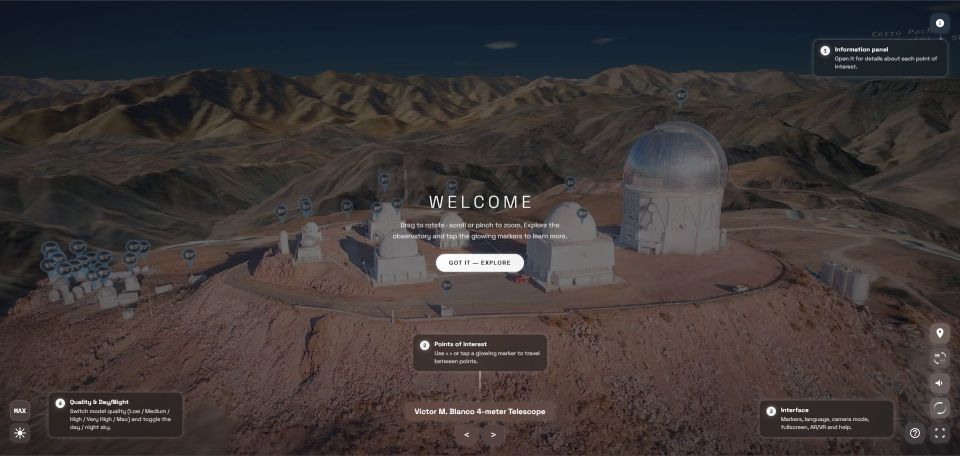
Explore the reconstruction
Drag to rotate the view. Use the mouse wheel or a pinch on a touchscreen to zoom in or out. The arrows ‹ › cycle through points of interest; glowing markers let you select them in the scene. Open the information button to read about the selected point.
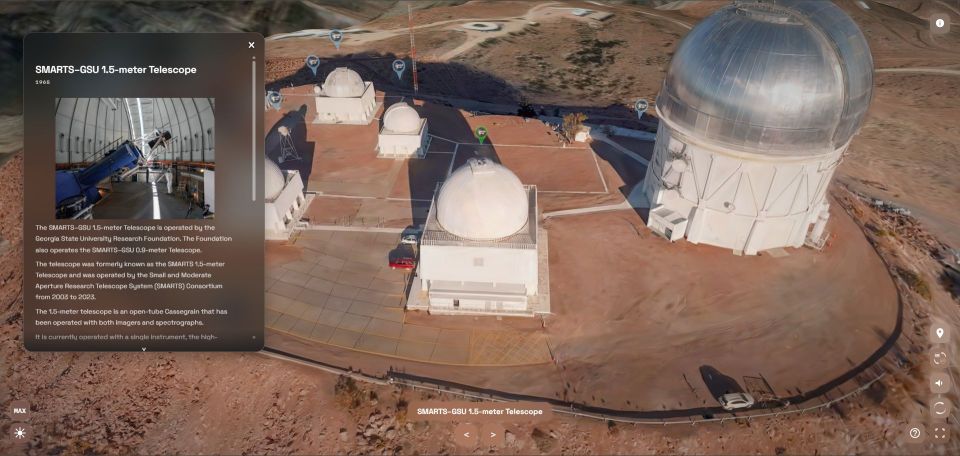
Viewer buttons and icons
Recognize the four camera modes
One button has four states. Press to cycle through them in this order and identify the active mode by its icon.
View CTIO control help
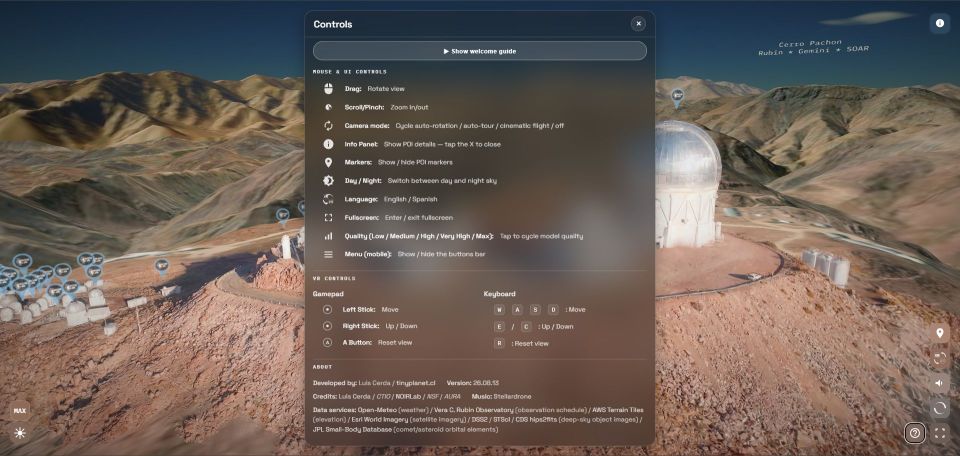
The VR help section lists WASD for movement, E/C for moving up or down and R for resetting the view. With a gamepad: left stick to move, right stick to move up or down and A to reset.
Explore the sky from CTIO
Night mode: an interactive planetarium
The day/night · sun and moon control switches from day to the night sky, turning the experience into a planetarium around the observatory. Explore the sky, search for objects and combine sky layers. Press day/night again to return to the daytime reconstruction.
To begin: enable night mode, choose a date and time, open Sky layers and enable Labels and IAU constellations. Drag to explore the sky. The search at the top finds objects by name: for example, type Saturn and select the result to view its information.
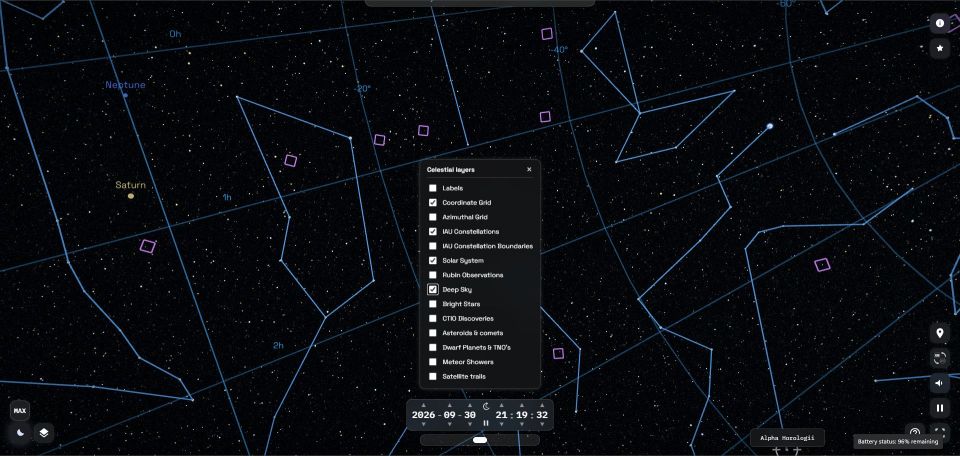
Date, time and sky movement
The time bar lets you choose the sky’s date and time and control its progression. Changing the date or time changes the planetarium positions. Identify each tool by its symbol and follow the table below.
Choose the layers to explore
Open the layers button and check or uncheck each option. Start with a few layers and add more depending on what you want to observe.
| Layers | What to explore |
|---|---|
| Labels | Identifies object names and sky references. |
| Coordinate grid · Azimuth grid | References for orientation in the sky and relative to the horizon. |
| IAU constellations · IAU constellation boundaries | Enables constellation figures and regions. |
| Solar System | Explore Solar System objects represented in the planetarium. |
| Deep sky · Bright stars | Select the sets of objects you want to examine. |
| Rubin observations · CTIO discoveries | Explore layers related to these observatories’ astronomical activity. |
| Asteroids and comets · Dwarf planets and TNOs | Adds datasets of minor bodies and trans-Neptunian objects. |
| Meteor showers · Satellite trails | Enables these references for exploration in the sky. |
Check “Tonight”
On desktop, when enabled, the star button opens a summary of observatory weather, Moon phase and illumination, and a list of planets with visibility indicators. Use this panel alongside the sky and selected date. The screenshot values are examples and change over time.
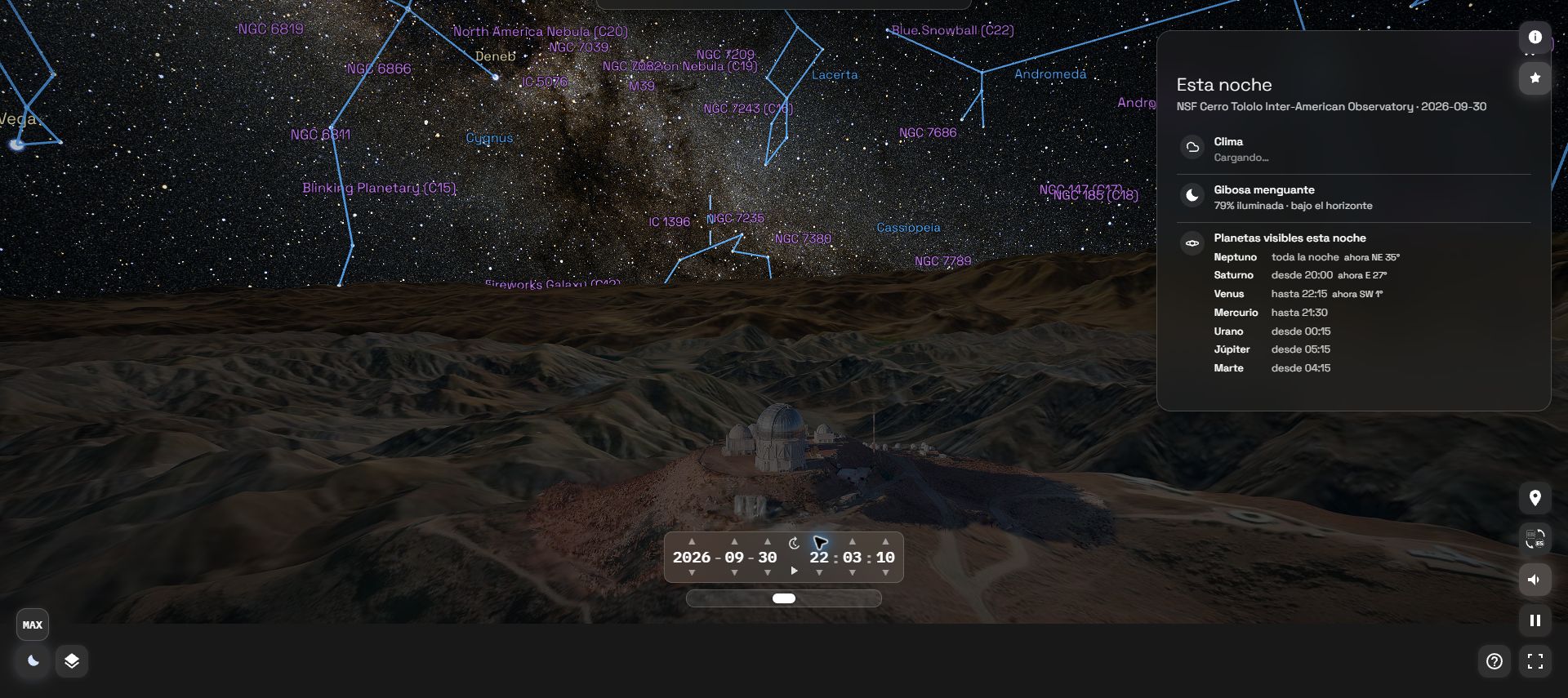
Screenshots taken at CTIO. Available controls and layers may vary across reconstructions in the collection.
Bringing places closer through photographs
This collection is at the heart of TinyPlanet: photogrammetric reconstructions using Gaussian Splatting that let you discover astronomical observatories from new perspectives.
Capture records the appearance of a place at a particular moment. Photographic coverage determines which areas and details can be explored.